
How to Check Your Calculator Setup Before an HSC Maths Paper
Learn how to check your calculator is NESA-approved, set the correct angle mode, enter scientific notation, and test essential functions before your HSC Mathematics examination. Includes practical checks and worked examples.
Your calculator can give you a perfectly neat answer to the wrong question. Enter \(\sin(\pi/6)\) while your calculator is set to degrees, and you’ll get approximately \(0.00914\), not \(0.5\). The calculator hasn’t malfunctioned. It has interpreted the angle using the wrong unit.
This is exactly why checking your calculator setup before an HSC Maths paper matters. A few simple tests can catch incorrect angle settings, scientific notation errors, and display problems before they interrupt your working.
The aim is not to learn every button on your calculator. It’s to know that the calculator you’re using is permitted, that its settings are correct, and that you can trust the numbers appearing on its screen.
01The calculator setup checklist
Before your HSC Mathematics Advanced, Mathematics Extension 1 or Mathematics Extension 2 examination, check these six things:
- Approved model: Your exact calculator model appears on NESA’s approved calculator list.
- Angle mode: You can identify DEG and RAD, and know when to use each.
- Scientific notation: You can enter positive and negative powers of ten using the EXP or \(\times 10^x\) key.
- Basic calculations: Brackets, negative numbers, fractions, and order of operations produce the expected results.
- Display settings: Your calculator isn’t rounding answers prematurely or hiding small numbers.
- Exam readiness: The battery works, the calculator is familiar, and it has been reset and switched off as required by NESA.
You don’t need to spend ten minutes doing this every morning. Once you’ve checked your calculator and practised the routine, a quick review before each paper is enough.
Due to technical limitations, this figure may display incorrectly or contain inaccuracies. Please check key details against your course materials.
01Check that your calculator is approved for the HSC
Before worrying about settings, make sure you’re actually allowed to bring your calculator into the examination room.
The NSW Education Standards Authority (NESA) publishes an official list of approved scientific calculators. Mathematics Advanced, Mathematics Extension 1 and Mathematics Extension 2 are all listed as examinations where an approved calculator may be used.
Importantly, approval applies to specific models, not entire brands.
For example, the current approved list includes:
| Brand | Examples of approved models |
|---|---|
| Casio | fx-82AU PLUS II (1st or 2nd Edition), fx-8200AU, fx-8200AU II, fx-100AU PLUS (1st or 2nd Edition) |
| Canon | F-715SG, F-730SX |
| Sharp | EL-531WH, EL-531XH, EL-W531HA |
| Texas Instruments | TI-30XB MultiView, TI-30X Plus MathPrint |
| Hewlett-Packard | HP10S, HP10S+, HP300S+ |
These are examples, not the complete list. Other approved models are available from Abacus, Jastek, RSB, and Scholar, among others.
Check the exact model name, suffix, and edition against the official NESA approved calculator list.
Don’t assume that a newer model is automatically approved just because an older calculator from the same range is on the list.
Which calculator functions are allowed?
NESA-approved calculators are scientific calculators. They can typically perform numerical calculations involving:
- Trigonometric and inverse trigonometric functions.
- Logarithms and exponential functions.
- Powers, roots, and reciprocals.
- Scientific notation.
- Permutations and combinations.
- Basic statistical calculations and linear regression.
However, NESA explicitly prohibits calculators with certain capabilities.
An approved calculator must not have:
- Programmable functionality that stores sequences of instructions for later execution.
- Graphing capability.
- Computer algebra system (CAS) functionality.
- Built-in financial functions.
CAS functionality includes symbolic algebra, differentiation, integration, and solving equations.
This means you should not plan to use a calculator’s symbolic differentiation, integration, equation-solving, or algebra-manipulation features during your examination. Your mathematical working must demonstrate the methods required by the question.
If you need an alternative calculator because of a disability or medical condition, check NESA’s formal HSC exam provisions rather than assuming an unlisted model will be accepted.
Know the exam-day requirements
NESA also specifies how calculators must be prepared:
- You must be familiar with your calculator’s operation before the examination.
- Calculators must be switched off and reset before entering the examination room.
- Calculator lids are not permitted.
- Instruction booklets and calculator reference cards are not permitted.
- Equipment must be in good working order.
You also cannot rely on borrowing another student’s calculator during the examination.
Read the NESA exam equipment requirements before your examination.
02Check your angle settings: DEG or RAD?
This is one of the easiest calculator settings to overlook, particularly when moving between trigonometry and calculus.
Your calculator can interpret an angle in two common ways:
- Degrees (DEG): A complete revolution is \(360^\circ\).
- Radians (RAD): A complete revolution is \(2\pi\) radians.
Both describe the same rotation, but they use different scales.
Think of it like measuring a length in centimetres or metres. The physical length hasn’t changed, but the number you enter means something different depending on the unit.
The same applies to angles.
A right angle is \(90^\circ\), or \(\frac{\pi}{2}\) radians. A calculator needs to know which measurement system you’re using before evaluating a trigonometric function.
When should you use each setting?
| Mathematical expression | Calculator setting |
|---|---|
| \(\sin(30^\circ)\) | DEG |
| \(\cos(60^\circ)\) | DEG |
| \(\tan(45^\circ)\) | DEG |
| \(\sin(\frac{\pi}{6})\) | RAD |
| \(\cos(\frac{\pi}{3})\) | RAD |
| \(\sin(1.2)\), where the angle is in radians | RAD |
| Trigonometric calculus involving radian measure | RAD |
The important thing is to read the question rather than assume one setting works for the entire paper.
Why radians matter in calculus
Radians aren’t just another way of writing angles. They’re particularly important when working with calculus.
For example, one of the standard differentiation results is
\[ \frac{d}{dx}(\sin x)=\cos x \]
This result assumes that \(x\) is measured in radians.
If you measure \(x\) in degrees instead, an additional factor of \(\frac{\pi}{180}\) appears:
\[ \frac{d}{dx}(\sin x) = \frac{\pi}{180}\cos x \]
This is why radian measure is essential when working with trigonometric derivatives and integrals.
The quickest way to test your angle setting
You don’t need to memorise a complicated calculation. One simple trigonometric value is enough.
If your calculator is in DEG mode:
\[ \sin(30)=0.5 \]
If your calculator is in RAD mode:
\[ \sin\left(\frac{\pi}{6}\right)=0.5 \]
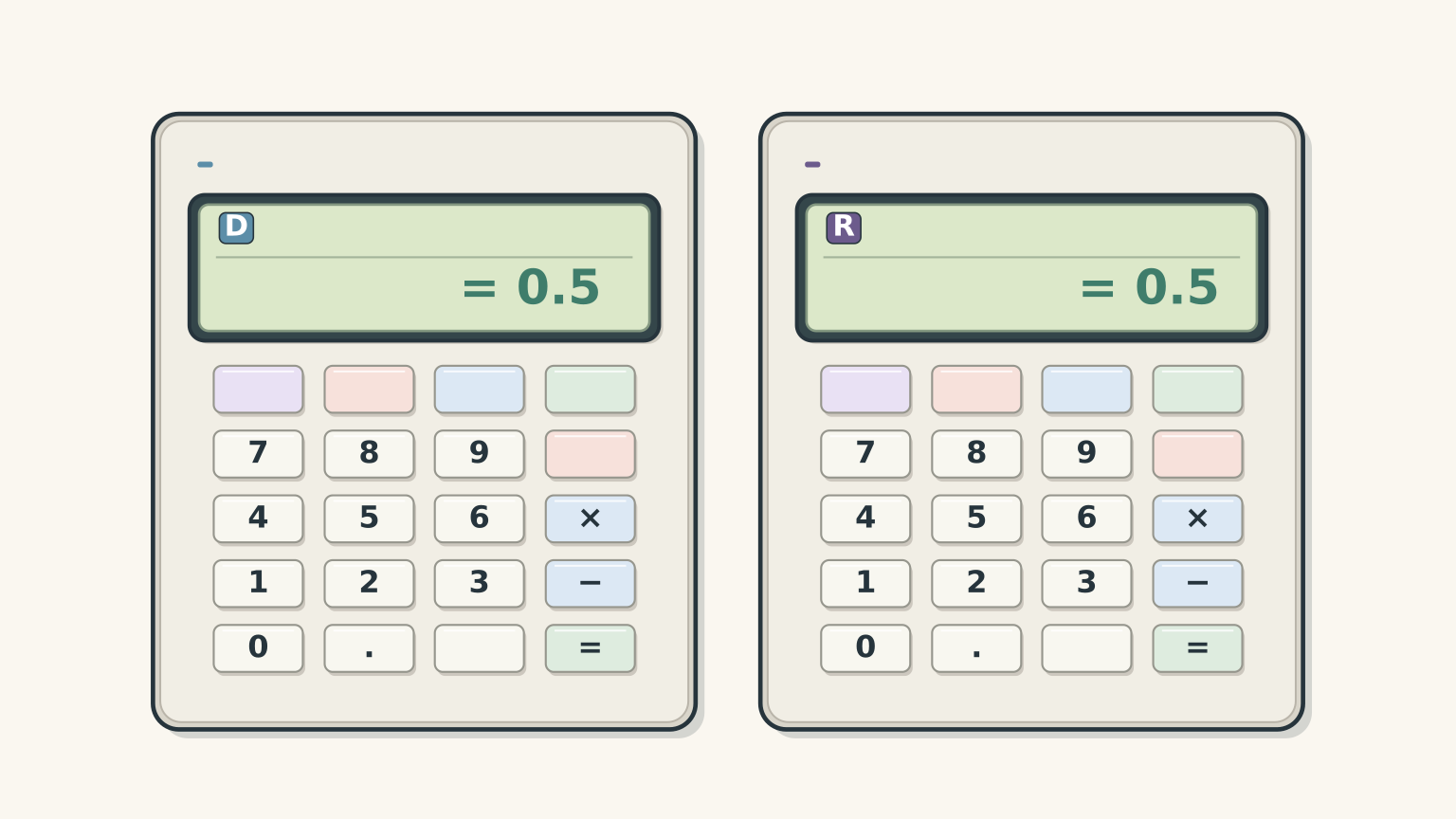
Both calculations should return exactly the same numerical result.
Try them on your own calculator.
If you enter \(\sin(\pi/6)\) while in DEG mode, you’ll get approximately \(0.00914\).
If you enter \(\sin(30)\) while in RAD mode, you’ll get approximately \(-0.98803\).
Neither result means your calculator is broken. It means you’ve selected the wrong angle unit for the calculation.
Due to technical limitations, this figure may display incorrectly or contain inaccuracies. Please check key details against your course materials.
How do you change the setting?
The exact button sequence depends on your calculator model.
Most scientific calculators have an angle setting inside a MODE, SETUP, or SHIFT menu.
Look for the options:
- DEG or Degree
- RAD or Radian
Select the appropriate option and check that the indicator appears on the calculator’s screen.
Don’t just select the setting and assume it worked. Run one of the test calculations above.
Also remember that resetting your calculator can restore default settings. If you have been using RAD mode, don’t assume it will remain selected after a reset.
03Check scientific notation and powers of ten
Scientific notation is used frequently in mathematical calculations, particularly when working with very large or very small numbers.
For example:
\[ 450\,000=4.5\times10^5 \]
And:
\[ 0.00032=3.2\times10^{-4} \]
Your calculator should allow you to enter these numbers without manually typing every zero.
Most NESA-approved scientific calculators have a key labelled EXP or \(\times10^x\).
This key represents multiplication by a power of ten.
For example:
\[ 3.2\times10^5 \]
Can be entered using:
3.2 EXP 5
Similarly:
\[ 4.0\times10^{-3} \]
Can be entered using:
4.0 EXP (-) 3
The negative exponent should be entered using the calculator’s negative-sign key where it is separate from the subtraction key.
Understand what E means on your screen
Your calculator might display scientific notation using the letter E.
For example:
| Calculator display | Mathematical meaning |
|---|---|
| 3.2E5 | \(3.2\times10^5\) |
| 4.0E-3 | \(4.0\times10^{-3}\) |
| 1.28E3 | \(1.28\times10^3\) |
| 2.5E-7 | \(2.5\times10^{-7}\) |
The letter E indicates an exponent of ten. It isn’t an extra multiplication or an instruction to use Euler’s number.
If your calculator displays 1.28E3, it is showing the same number as \(1280\).
Check your display settings
Scientific calculators often have different display modes.
The three common options are:
| Setting | What it does |
|---|---|
| NORM | Displays ordinary decimal numbers where practical. |
| SCI | Displays numbers in scientific notation. |
| FIX | Displays a fixed number of decimal places. |
For most HSC calculations, NORM is a sensible everyday setting. SCI is useful when working with very large or small numbers.
Be careful with FIX.
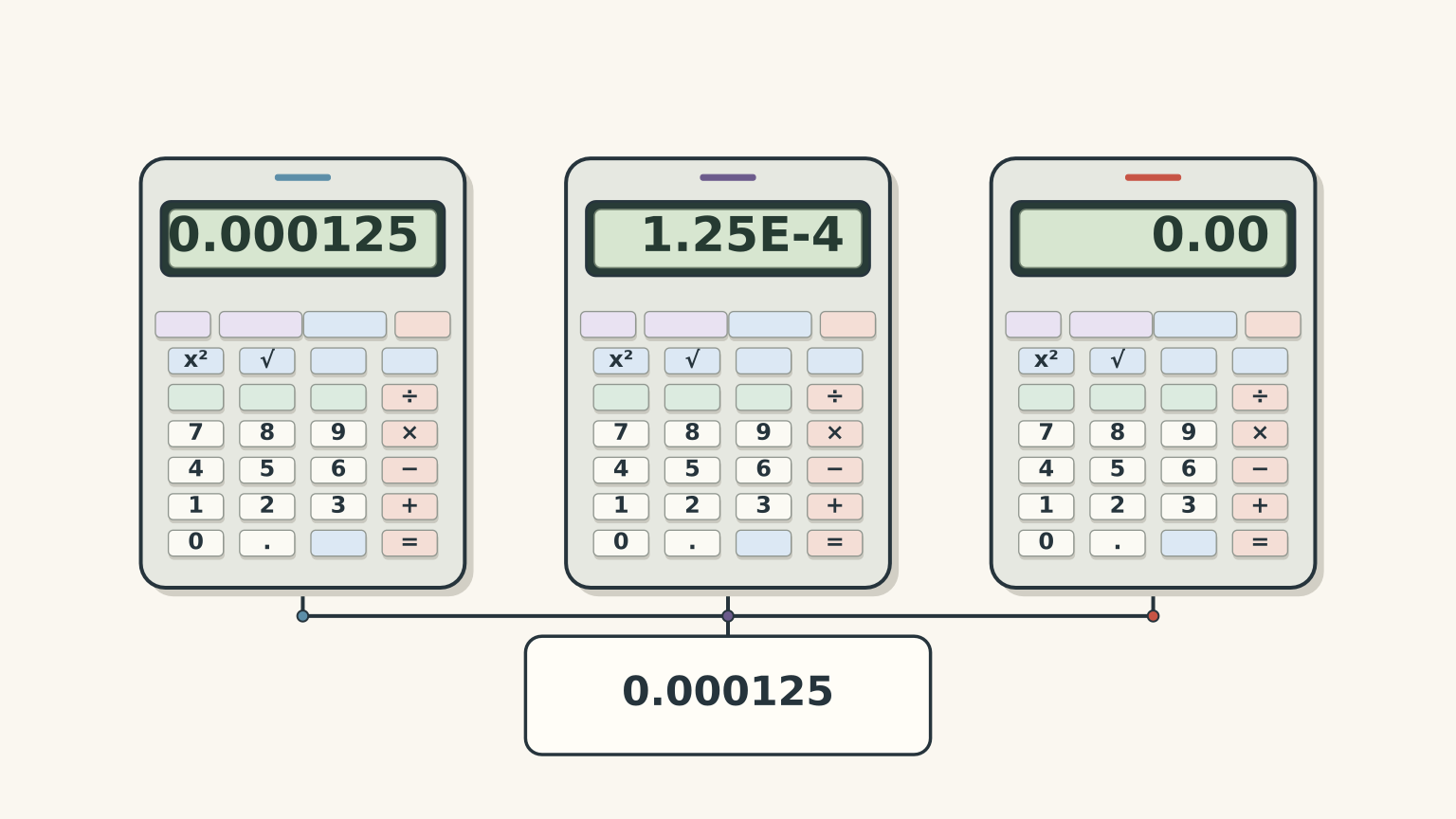
Suppose you set your calculator to FIX 2, meaning two decimal places.
A calculation that produces \(0.000125\) might appear as:
\[ 0.00 \]
That does not mean the actual answer is zero. It means the displayed result has been rounded to two decimal places.
This can be particularly dangerous when working with small values.
Use enough displayed digits to maintain accuracy. Avoid rounding intermediate calculations, and round only your final answer to the precision requested in the question.
If a question asks for an exact answer, such as \(\frac{\sqrt{3}}{2}\), don’t automatically replace it with a decimal approximation.
Due to technical limitations, this figure may display incorrectly or contain inaccuracies. Please check key details against your course materials.
04Run a few test calculations
Now that your angle and display settings are sorted, check that your calculator handles ordinary mathematical operations correctly.
These calculations are deliberately simple. You should know the answers without needing another calculator.
| Test calculation | Expected result | What it checks |
|---|---|---|
| \(2+3\times4\) | 14 | Order of operations |
| \((2+3)\times4\) | 20 | Brackets |
| \(\sqrt{49}\) | 7 | Square root function |
| \(\frac{1}{3}+\frac{1}{6}\) | 0.5 | Fraction calculations |
| \(\sin(30)\), in DEG | 0.5 | Degree setting |
| \(\sin(\pi/6)\), in RAD | 0.5 | Radian setting |
The first two calculations are particularly useful.
A calculator should perform multiplication before addition unless brackets specify otherwise.
Therefore:
\[ 2+3\times4=2+12=14 \]
But:
\[ (2+3)\times4=5\times4=20 \]
If you accidentally enter the wrong brackets, your calculator will still give you a valid answer. It just won’t be the answer to the expression you intended.
This is why entering calculations carefully matters just as much as having the correct settings.
Worked example: Checking a trigonometric calculation in radians
A question gives an angle of \(1.2\) radians. Evaluate \(\sin(1.2)\), correct to four decimal places.
Step 1
The question explicitly states that the angle is in radians.
Therefore, the calculator must be set to RAD.
Step 2
Confirm that RAD or R appears on the calculator display.
Step 3
Enter:
\[ \sin(1.2) \]
The calculator returns approximately:
\[ 0.932039\ldots \]
Step 4
To four decimal places:
\[ \boxed{0.9320} \]
Step 5
If the calculator were accidentally set to DEG, it would interpret the angle as \(1.2^\circ\), producing approximately \(0.0209\).
The difference is substantial.
The mathematical expression was correct, but the calculator setting changed the meaning of the input.
Worked example: Checking scientific notation
Evaluate the following expression and give your answer in scientific notation to three significant figures:
\[ (3.2\times10^5)(4.0\times10^{-3}) \]
Step 1
Enter:
3.2 EXP 5
This represents \(3.2\times10^5\).
Step 2
Enter:
4.0 EXP (-) 3
This represents \(4.0\times10^{-3}\).
Step 3
The complete calculation is:
\[ (3.2\times10^5)(4.0\times10^{-3}) \]
Using the laws of indices:
\[ = (3.2\times4.0)\times10^{5-3} \]
\[ =12.8\times10^2 \]
\[ =1280 \]
Step 4
\[ \boxed{1.28\times10^3} \]
Your calculator might display 1280 or 1.28E3, depending on its display setting.
Both are correct.
Step 5
The first number is approximately \(320\,000\), while the second is \(0.004\).
Multiplying them should produce a number in the thousands, not millions or fractions of one.
The answer \(1280\) is therefore reasonable.
05Your final exam-day calculator audit
Once you’ve practised the checks, use this short routine before your paper.
Before leaving home
- [ ] Confirm your exact calculator model is on the current NESA approved list.
- [ ] Check that the calculator turns on reliably.
- [ ] Check that the display is clear and readable.
- [ ] Confirm you know how to switch between DEG and RAD.
- [ ] Practise entering scientific notation with positive and negative exponents.
- [ ] Check that brackets, fractions, and negative numbers work as expected.
- [ ] Make sure you understand your display settings.
Before entering the examination room
- [ ] Reset your calculator as required by NESA.
- [ ] Switch it off before entering.
- [ ] Leave the calculator lid behind.
- [ ] Leave instruction booklets and reference cards behind.
Once the examination begins
- [ ] Check the angle setting before each trigonometric calculation.
- [ ] Read negative signs, brackets, and powers of ten carefully.
- [ ] Keep sufficient decimal places during intermediate calculations.
- [ ] Check whether the question requires an exact answer or a decimal approximation.
- [ ] Use your calculator to verify your mathematical working, not replace it.
One particularly important habit is to check the angle unit every time you encounter a new trigonometric expression. A paper can move between degrees and radians, so don’t assume your calculator should remain in one mode throughout the examination.
07Questions and solutions
Use these three situations to check whether you can apply the setup principles rather than simply memorise the checklist.
Question 1
Your calculator currently displays RAD. You encounter the expression \(\cos(60^\circ)\).
What setting should you use, and what result should your calculator produce?
Solution 1
Set the calculator to DEG, and the answer should be \(0.5\).
The degree symbol tells you that the angle is measured in degrees.
Therefore:
\[ \cos(60^\circ)=0.5 \]
If you leave the calculator in RAD mode, it interprets the input as 60 radians rather than \(60^\circ\).
The result will be approximately \(-0.9524\), which is incorrect for the question.
Always check the angle unit before entering a trigonometric expression.
Question 2
You need to evaluate:
\[ \frac{7.2\times10^{-4}}{3.0\times10^2} \]
Your calculator displays:
2.4E-6
A student thinks the calculator has produced an error because the answer looks different from ordinary decimal notation.
Explain why the display is correct, and write the answer in ordinary decimal form.
Solution 2
The calculator is correct. The displayed result is \(2.4\times10^{-6}\), which is equal to \(0.0000024\).
Start by separating the numerical values and powers of ten:
\[ \frac{7.2\times10^{-4}}{3.0\times10^2} = \frac{7.2}{3.0}\times10^{-4-2} \]
Calculate the numerical division:
\[ \frac{7.2}{3.0}=2.4 \]
Subtract the exponents:
\[ 10^{-4-2}=10^{-6} \]
Therefore:
\[ \boxed{2.4\times10^{-6}} \]
To convert this into ordinary decimal notation, move the decimal point six places to the left:
\[ \boxed{0.0000024} \]
The important distinction is that E-6 means multiplication by \(10^{-6}\). It doesn’t mean the calculator has lost six decimal places.
A useful check is to consider the size of the answer. You’re dividing a small number by a large number, so the result should be extremely small.
Question 3
Consider the following expression:
\[ \sin(30^\circ)+\cos\left(\frac{\pi}{3}\right) \]
A student notices that the expression contains \(\pi\), switches their calculator to RAD mode, and enters the entire expression in one calculation.
Explain why this approach is incorrect, and determine the correct answer.
Solution 3
The correct answer is \(1\). The student must account for the fact that the expression contains angles measured in two different units.
The tempting approach is to select RAD because the expression contains \(\pi\). However, the first angle is explicitly measured in degrees.
A calculator has only one active angle mode at a time. It cannot automatically interpret different terms using different angle units.
Evaluate the first term in DEG mode:
\[ \sin(30^\circ)=0.5 \]
Now switch the calculator to RAD mode and evaluate the second term:
\[ \cos\left(\frac{\pi}{3}\right)=0.5 \]
Combine the results:
\[ 0.5+0.5=1 \]
Therefore:
\[ \boxed{1} \]
There is another valid approach. Convert the degree measurement into radians before entering the entire expression:
\[ 30^\circ=\frac{\pi}{6} \]
The expression becomes:
\[ \sin\left(\frac{\pi}{6}\right) + \cos\left(\frac{\pi}{3}\right) \]
Now both angles are in radians, so the entire calculation can be performed in RAD mode.
This is the important lesson: the calculator’s angle setting applies to every trigonometric function you enter. The presence of \(\pi\) doesn’t automatically change the unit of the other angles.
08What to practise next
A reliable calculator setup removes avoidable errors, but it doesn’t guarantee that your mathematical method is correct.
The next step is to practise these checks while completing actual HSC-style questions. Pay particular attention to switching angle modes, entering complicated expressions with brackets, and keeping enough accuracy in multi-step calculations.
You can build this habit using How to Use Past HSC Papers Before You Finish the Syllabus.
Official NESA information checked 15 November 2026:
- Approved calculators for the 2027 HSC
- 2027 HSC examination equipment list
- Mathematics syllabus development and implementation dates
A note for the 2027 cohort: The 2024 Mathematics Advanced, Extension 1 and Extension 2 syllabuses are being examined for the first time in the 2027 HSC. Their 2017 predecessors had their final HSC examinations in 2026. Make sure your revision resources match your current syllabus, and always check the approved calculator list for your examination year.